ClickSuper Clearing House
Ready Pay has incorporated the ClickSuper superannuation e-commerce solution.
This means that you no longer need to log in to multiple superannuation portals to fill out member details and contributions, and you don’t even need to log in to your banking software to make payments.
This service can also validate your super fund details.
To commence using ClickSuper services in Ready Pay you will first need to complete the relevant application forms and direct debit authorities etc.
These steps should be conducted directly via www.ClickSuper.com.au. In the “Service Details” section of the application process, you will be asked for a File Upload Code.
This code identifies your payroll software provider.
The File Upload Code for Ready Pay is WDPB1L.
Once these steps are completed, there are a number of initial steps required to prepare for your first use of the service in Ready Pay .
You will need to activate the ClickSuper Services module within Ready Pay.
As part of this activation process, you will need to include a new Product License Key (PLK) for your Ready Pay database.
We suggest you contact the Ready Pay support team for the PLK prior to starting the activation process.
Assuming your registration has been completed, there are several initial steps required to prepare for the first use of ClickSuper.
Activate ClickSuper Services Module in Ready Pay
- You will need to activate the ClickSuper Services module within Ready Pay which will prompt for a new Product License Key (PLK) for your Ready Pay database.
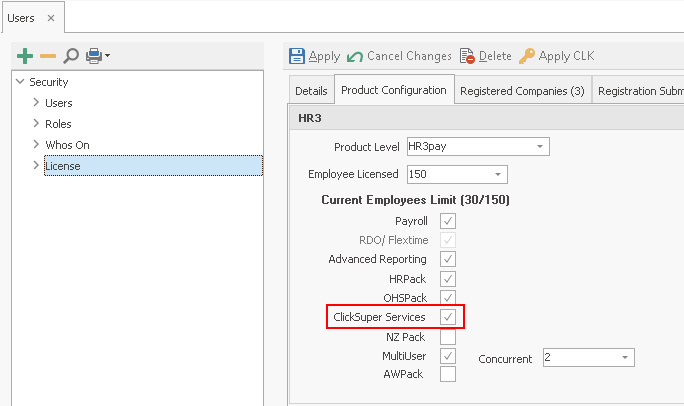
- From the Navigator, select User Security > User Maintenance > Licence
- Click on the Product Configuration tab on the right-hand side of the screen and the following screen will be displayed.
- Tick the ClickSuper Services option and click Apply.
- A screen will pop-up asking you to input your new PLK.
You will need to call the Ready Pay support team to obtain a new PLK code. - Enter your new PLK and click OK.
-
As part of the registration process with ClickSuper, you will receive a Login ID and Password.
Once you have received your ClickSuper Login ID and Password, you will need to enter these in Ready Pay. -
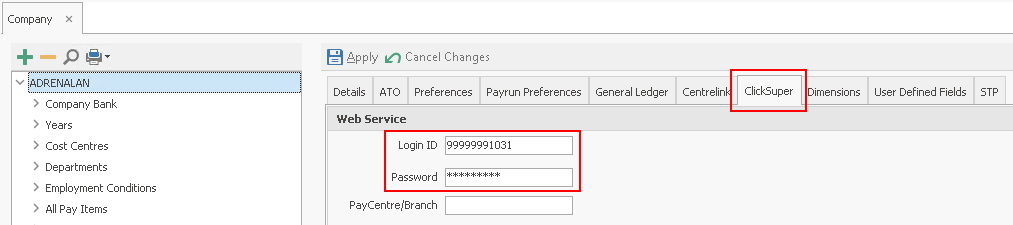
From the Navigator go to Company Definition > Maintain Company and then select the ClickSuper tab on the right-hand side of the screen.
- The following screen will open.
-
Enter your Login ID and Password and click Apply. Please note your login ID is usually your company ABN. The password is provided by ClickSuper
-
You have now activated the ClickSuper Services module of Ready Pay.
ClickSuper Product Search – Fund Validation The next step is to ensure that all the superannuation fund details that you have in Ready Pay are correct.
Ready Pay has a function called ClickSuper Product Search to assist with this process., it gives you the ability to validate your
It is a quick lookup function that will return a list of funds that match the supplied Fund Name, ABN or SPIN.
- From the Navigator, select Company Definitions > Superannuation Funds.
- The Super Funds screen will open with a list of all the Super Funds you have defined in Ready Pay.
Select the first of your current funds from either the tree on the left of the screen, or by double-clicking the fund in the grid on the right.
The selected super fund details will be displayed. - Click on the ClickSuper Product Search button
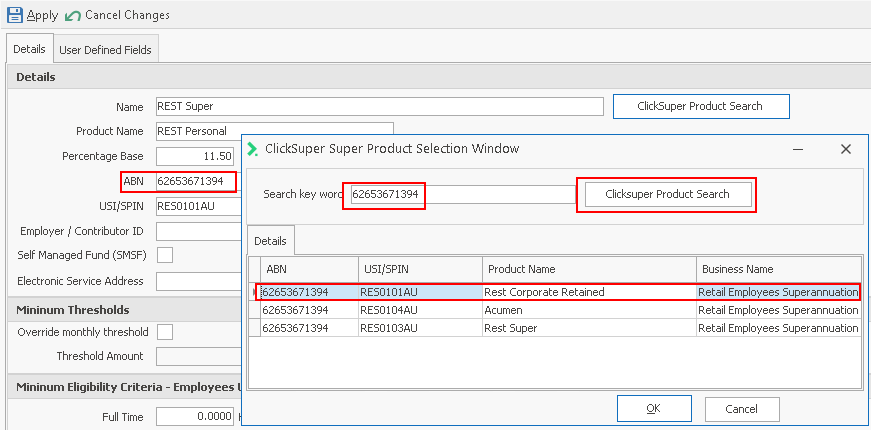
NOTE: The initial search results are based on trying to match your existing fund Name.
In many cases your existing fund Name may not be correct and therefore you may not get a correct match.
Examples of incorrect matches will include funds with a space where there should be none (e.g. Sun Super instead of SunSuper), incorrect abbreviations (e.g. R.E.S.T. instead of REST) and so on.
If there is no matching entry in the pop-up list, try typing in the fund’s ABN or USI/SPIN as you are much more likely to get an exact match on these. -
When you have a match, click on the correct entry in the list and click OK. The relevant sections for that fund Name in Ready Pay will be completed.
-
Click OK and Apply to save the changes.
- Repeat for all other funds that you wish to include in the ClickSuper upload.
Note: You must specify the BSB and account number for any Self-Managed Super Funds (SMSF’s) for ClickSuper to be able to make the EFT payment to the fund. It is not necessary to specify BSB’s and account numbers for Retail funds or Industry funds (i.e. any fund with a SPIN) as ClickSuper already holds all of these.
Excluding certain funds from ClickSuper
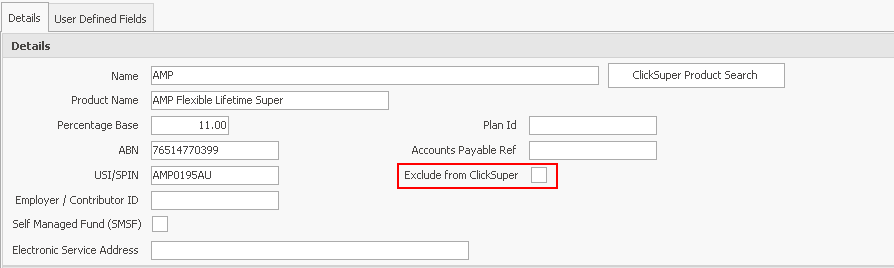
You may wish to exclude certain funds from the ClickSuper service. An example might be a Defined Benefits Fund, as the ClickSuper service does not cater for Defined Benefit Funds.
To exclude a super fund from the ClickSuper process, tick the Exclude from ClickSuper option for the relevant funds.