
Documents in Employee files
This section can be used to load or attach documents for employees.
Your options vary, depending on whether or not you have purchased the HR module:
- If you have not purchased hr, you can load any documents which relate to this employee, such as resumes, property issues and so on.
- If you have purchased hr, you would primarily use this section for documents which do not have a dedicated repository, such as pay-related notifications from the employee regarding banking splits, salary sacrifice arrangements and so on.
- hr-related documents would normally be loaded using the dedicated repositories for events, training, skills or property nodes (these nodes would be hidden if hrhas not been purchased).
These repositories are mirrored within hr itself, meaning a document loaded in the employee file is accessible through hr and vice versa.
Add a Document or Image
Adding
Please refer to this link Adding Documents.htm
Loading DocumentsLoading a document into the database creates a copy of the original document and stores it in the database.
The loaded document can then be edited without affecting the original.
You will know if a document has been loaded (rather than attached) if the Check Out button is enabled at the top of the document screen.
Loading a Document Into the Database
- In the employee file select the Documents node on the left.
- Click on the Add New button on the right.
- Next to File Path, click the Browse button
 .
.
A pop-up window will appear. - Browse to the location of the document you wish to add.
- Select the required document, and click Load (or Cancel to exit).
- Click OK to save the new document settings.
Attaching Documents to the DatabaseAttaching a document to the database effectively creates a link to the original document wherever it is stored.
Editing an attached document will also edit the original.
When a document has been attached, the Check In / Check out buttons are disabled at the top of the document screen.
Attaching an external document
- In the employee file select the Documents node on the left.
- Click on the Add New button on the right.
- Next to File Path, click the Browse button .
A pop-up window will appear. - Browse to the location of the document you wish to add.
- Select the required document, and then click Attach(or Cancel to exit).
This action will create a link to the document wherever it is stored. Editing an attached document will also edit the original. - Click OK to save the new document settings.
Editing an attached document
If the document was originally attached, use the following procedure to edit it.
- In the employee file select Documentson the left.
- On the right, select the document to be edited.
- Click the Edit button.
- In the pop-up window, click the Open button or document icon.
The document will open for editing in the relevant program.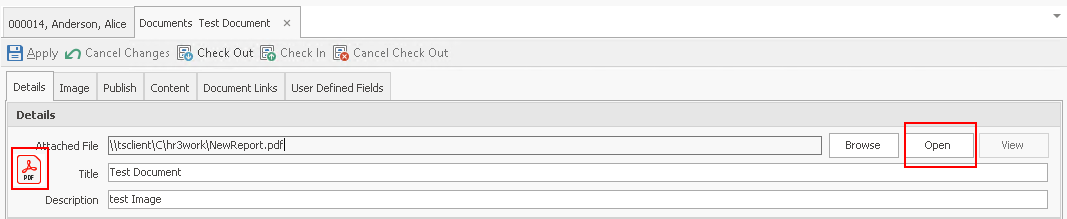
- Make any required changes, then save the document in its program.
The changes are instantly available to any other users who may access the document from Ready Payor from the file's location. - Back in Ready Pay, click OK to close the document window.