
Employee Batch Updates
Employee Batch Updates provide an efficient process to import pre-defined Excel documents and update data in the Ready Pay database, enabling you to process multiple unrelated transaction types from this single function.
The Batch Update types available are:
- Pay Items/Deductions and Rates
- HR Skills, Training, and Property
- Employee/Department costing updates
- Onboard employees
- Employee Super Items
- Employee Events
To Process an Employee Batch Update
Go to Navigator > Employee > Batch Updates to run the Batch Update Wizard.
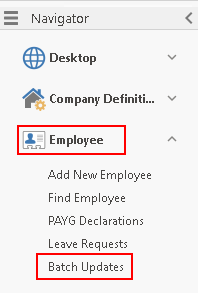
- Select Open a new Batch Update then click Next
Alternatively you can highlight the appropriate Batch Update in the list displayed, select Enter or amend entries in an existing Batch Update then click Next. This will go straight to Step 4 of the Wizard. - For anew Batch Update, complete the following fields. Note all fields need to be completed.
Field Explanation Document Type Choose the relevant Batch type from the drop down list. Description Enter an appropriate description for this Batch Update. This is a mandatory field. Cannot Execute Before this Date Use the drop-down calendar to specify the earliest date this batch can be updated. Cannot Execute After this Date Use the drop-down calendar to specify the latest date this batch can be updated. Import File Click the Browse button to locate the file to be imported for this Batch Update Click Next to continue.
- The Data Validation screen will indicate if there are any errors with the process.
For example, an employee ID number given on the import file may not exist on the Ready Pay database.
This gives you the opportunity to fix any errors - note that cell addresses are given so you know exactly where the problems have occurred.
Once the Validation is successful, nothing will be listed here.
Click Next to continue.- You may leave this Batch Update window open while you fix the errors.
Once fixed, click Back (to return to the Import screen) then click Next to re-import the file and to display the Data Validation screen again. (Repeat this if necessary, until all errors are fixed.)
- You may leave this Batch Update window open while you fix the errors.
- This Detail Data screen indicates all the updates/additions that will occur.
The toolbar along the top of the Wizard screen indicates the current status of the Batch Update.
You can choose to Accept if all the details are correct, or click Cancel if preferred.
Note that if this batch update is cancelled, the Status in the top bar will show Pending*.
You may click on Pending to reactivate the Cancel and Accept buttons. - After you have clicked Accept, this activates the Update button.
Click Update to import the new data and complete the Batch Update process.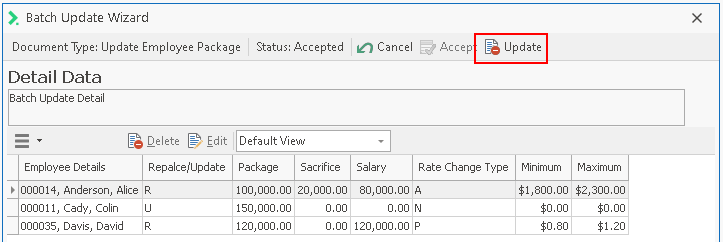
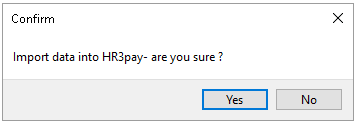
- A Confirm message to Import is displayed - click Yes to continue.
The import will commence and return a Completed window showing all employees that have had data imported.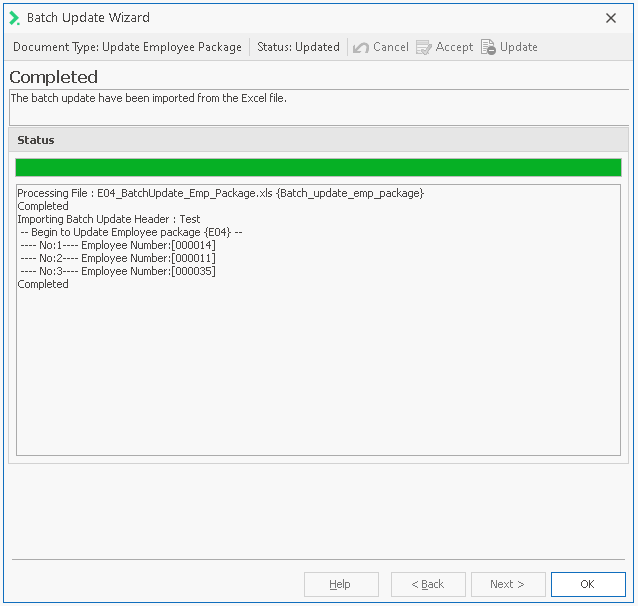
- Once the update is complete, click OK to close the Batch Update wizard.
Note: Pending and Date execution date ranges are not supported when using the Employee Onboard document