
Importing Timesheets
- In the Payrun Processesscreen of the Payrun Wizardclick the Execute button next to Timesheets Import.
This option is used to Import Timesheets from Kiosk.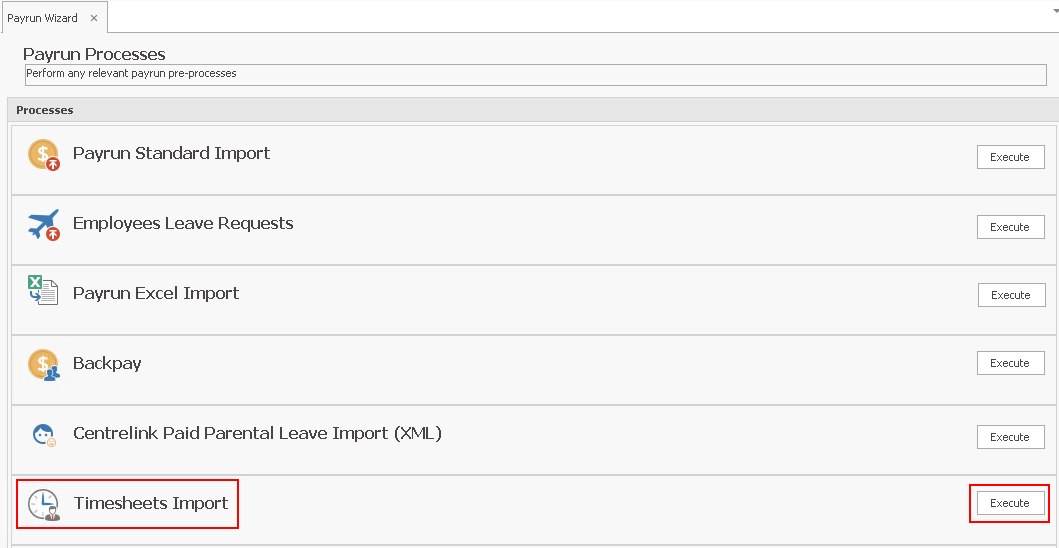
The Timesheets screen will open. This screen has a variation of the Enhanced Data Selection Grid toolbar. - From the Date Range toolbar:

Select the appropriate number to show the last 1, 2, 3, or 4 weeks' timesheets.
This will automatically adjust the Start and Finish dates. You may adjust these dates if required.
Alternatively, use the drop-down arrows to select the required Start and Finish dates. - Click Refresh. This will list all Approved/Locked timesheets within the dates specified.
Note that you may also see previously imported timesheets listed, as this gives you the opportunity to re-import them if necessary. - All timesheets are selected by default - deselect those which are not required.
To quickly deselect all the timesheets, right click in this column and choose Deselect All from the pop-up menu.
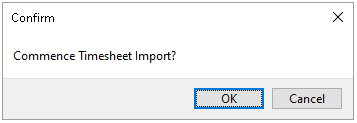
Reselect the individual timesheets that you want to import. - Click Start Import, then click OK on the confirmation message (or Cancel).
- Once the import is complete, the timesheets will still be displayed in the list but will now have Imported ticked, and will not be ticked in the Selected column.
Click Close to exit the Timesheets import.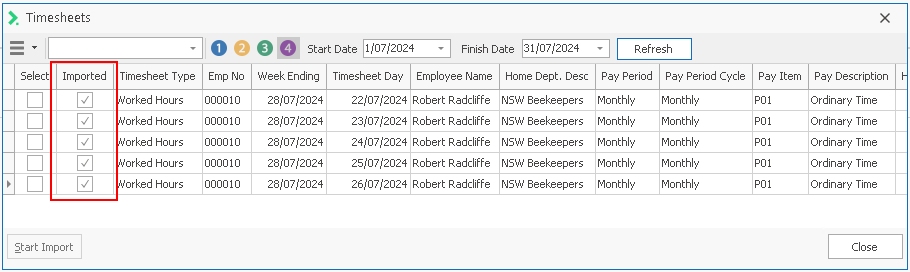
Return to Step 3 - Importing Employees