
Groups
The Employee Self-Service Kiosk Groups page is used to fast-track user security.
By creating specific groups with individual security restrictions, Employee Self-Service Kiosk users can be linked to the group that represents their permissions.
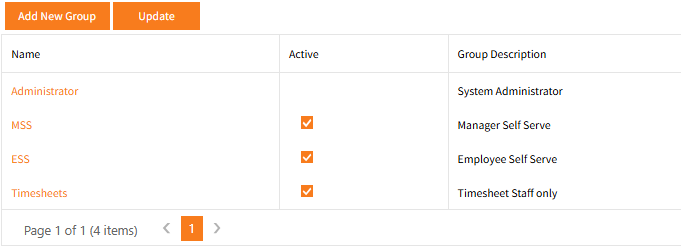
Administrator is the only group that is included in Employee Self-Service Kiosk by default.
This is a required group because it is the Administrator who is able to create and amend all other Groups and Users.
This group is designed to have access to all pages with full permissions including the Function Manager permission to all pages where available.
Proceed with caution when amending the Administrator Group - It is important that this group retains Administrator level permissions for all pages in Employee Self-Service Kiosk.
Rather than making changes to the Administrator group, it is recommended to create a new Alternate Group instead.
One user must be retained in the Administrator group.
ESS has been created as an example.
This is an acronym for Employee Self Service - a standard term which refers to a web-based system which allows you to access your own records over the Internet.
This acronym has been used to indicate the Employee group of users.
This group would usually be set up with no access to pages intended for managers and perhaps restricted access to other pages so items can only be viewed.
Users in this group would usually only have the My Own permission set for all pages they are set up to access.
MSS has been created as an example.
This is an acronym for Manager Self Service, and like ESS, is a standard term.
As a manager within the MSS group using Employee Self-Service Kiosk, they have the ability to access their own data as well as view data for the employee’s that directly report to them.
Users in this group would usually be granted access to the My Team menu and sub menu items to be able to see and deal with their team members.
Time Sheets has been created as an example.
This group is set up as a copy of the ESS group, but with added access to Timesheets.
This group of employees is required to enter timesheets in order to be paid.
When configuring Employee Self-Service Kioskthese same groups may be created, or a series of other groups which are customised to the specific requirements of the organisation.
For example there may be two levels of Manager group, where the top level Managers can access the Management menu/sub-menus and the My Team menu.
Second level Managers cannot access the Management Menu, only My Team is accessible.
The Active checkbox controls whether that group is active, it can only be de-activated if no users are assigned.
Group Security
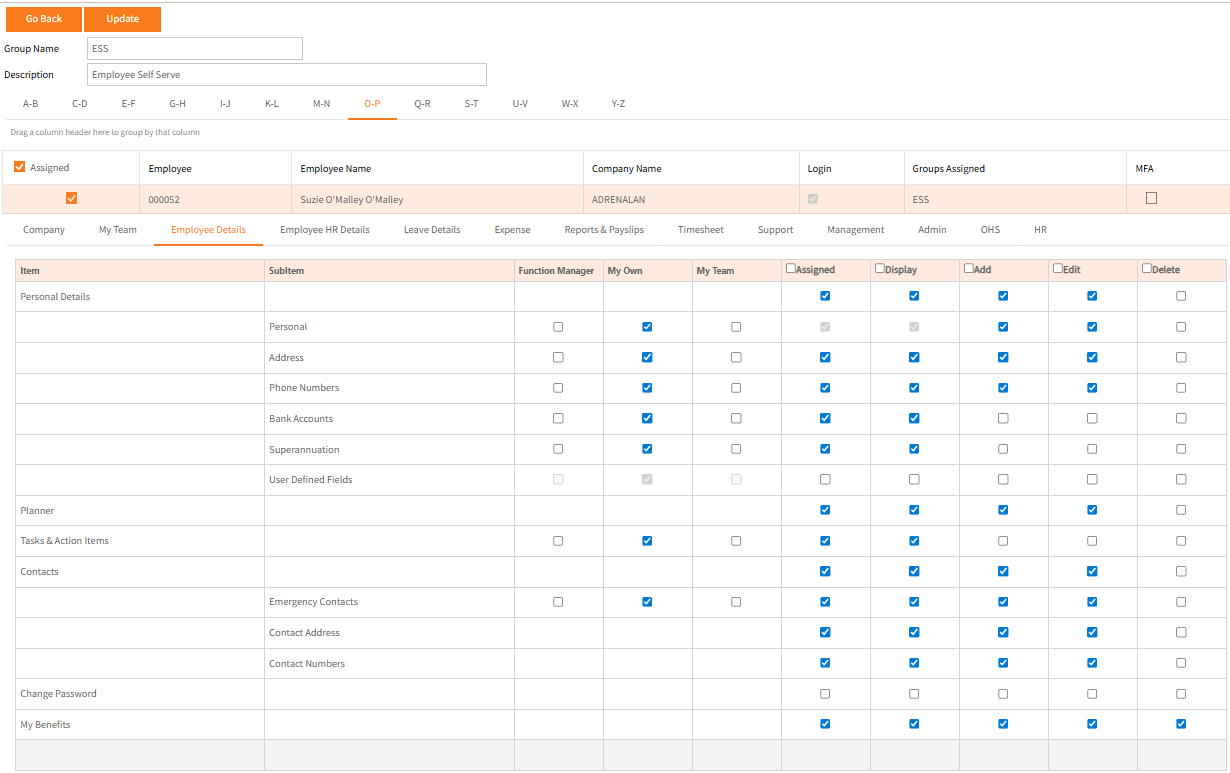
Clicking Group name hyperlink displays the Employee Self-Service Kiosk's menu options, allowing the display and permissions configuration for that group to be set.
In addition to the security permissions to pages, Users are displayed in alphabetical tabs (based on surname).
This option allows the system administrator to see which users are linked to each group and to remove or add the user for that group.
It is recommended that such changes are done through the Users page rather than Group as this also allows the user to be removed from other Groups.
For example:This shows security settings for the pages in the Employee Details menu for an employee (the only employee with a surname starting with O-P) assigned to this ESS group.
See Create New Group for more information.
Function Manager, My Own or My Team
The options Function Manager My Ownor My Team are available for some pages in Employee Self-Service Kiosk.
- Function Manager means that the User/s within the current Group have permissions to access every employee for that page.
It is suggested that this only be selected in Administrator level groups.
Some high-level Manager groups may have access to specific pages such as the Management views (reports) . - My Own means the User/s within the current Group can only see their own records for that page.
-
My Team means the User/s will be able to see their team members (those that report to the user’s position in the Organisation Chart- HR module only).
In some cases also those that are not in their team but are set to be approved by this user.