
System Options - Display
The options within this tab allow administration staff to specify exactly what options for specific pages in Employee Self-Service Kioskare to function or be displayed.
For example:
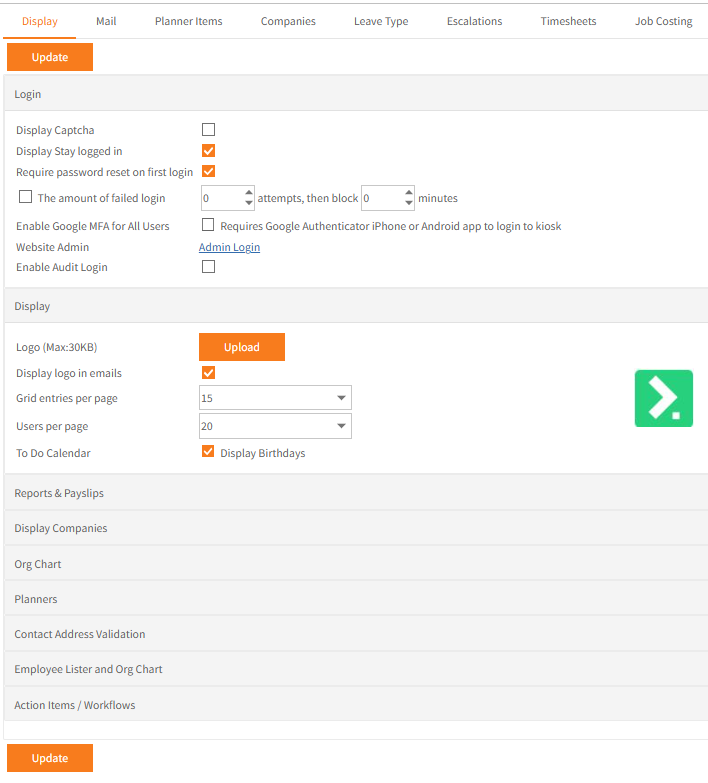
If any changes are made click Update to save. To ensure changes are applied globally, all users should log out of kisok and then log back in.
Refer to the tables below for an explanation of the options in each page.
Login
| Field | Explanation |
|---|---|
| Display Captcha | Displays a captcha code on the login screen required to login. |
| Display Stay Logged in |
Displays a Stay Logged In check box on the Employee Self-Service Kiosk login screen. If ticked,on the login screen, the user may close the browser tab but then access the site once more and still be logged in. |
| Password complexity requirement |
Specifies the minimum number of characters between 6 and 10. If set to None, there is no lower limit. |
| Require password reset on first login |
Requires a user that has never logged in to Employee Self-Service Kiosk before to set a new password on their first login. This does not apply retrospectively once switched on, that is a user that has previously logged in will not be required to change the password on next login. |
| The amount of failed login | Enables Employee Self-Service Kiosk to block login from a user that has unsuccessfully tried to login a set number of attempts for a set number of minutes. |
| Enable Google MFA for All Users | Enables Multi-Factor Authentication (MFA) site-wide. Upon enabling this setting all users will be required to register for MFA and provide a code for each login to Employee Self-Service Kiosk. |
| Website Admin | This is an IT level function where the connection details may be changed after providing IT credentials to access the page containing the details. |
| Enable Audit Login |
Enables Employee Self-Service Kiosk to store user login history in the database. This data may then be viewed in Ready Pay, it is not viewable in Employee Self-Service Kiosk. |
Display
| Field | Explanation |
|---|---|
| Logo |
A company logo up to 30KB may be loaded to display on the login screen. |
| Display logo in emails | Select this option to include the logo on any emails sent by Employee Self-Service Kiosk. |
| Grid entries per page | Sets the default option for all grids in Employee Self-Service Kiosk. These can be overridden by users and Employee Self-Service Kiosk will retain their preference. |
| Users per page | Sets the default options for the list of users on the Group security page. |
| To Do Calendar | Sets whether Birthdays should be displayed in Employee Self-Service Kiosk’s Planners. |
Reports & Payslips
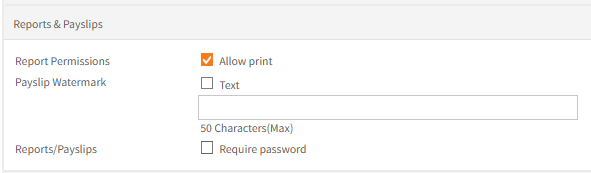
| Field | Explanation |
|---|---|
| Report Permissions | Controls whether Employee Self-Service Kiosk user are allowed or not allowed to print reports. |
| Payslip Watermark | Allows a text watermark to be entered e.g. a company name or perhaps Printed from Employee Self-Service Kiosk. |
| Reports/Payslips | If checked, requires the password from the employee file to be entered to open the report’s pdf. |
Display Companies
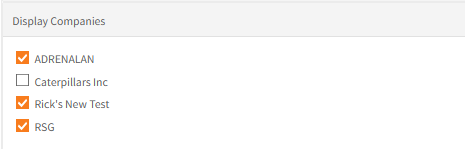
If you have multiple companies set up within Ready Pay, specify which of these should be displayed within Employee Self-Service Kiosk when running reports or viewing the Org chart.
Org Chart
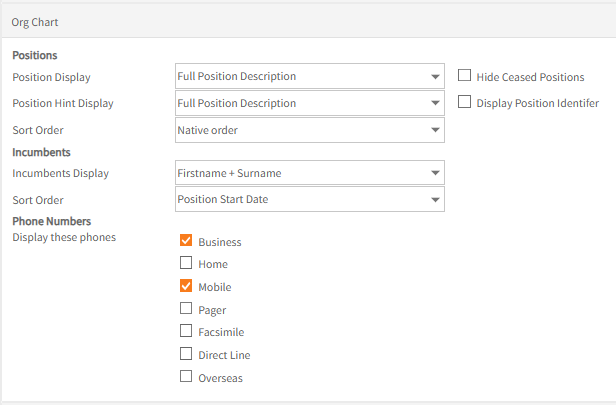
| Field | Explanation |
|---|---|
| Positions | |
| Position Display | Select between the Full or Short Position Description |
| Hide Ceased Positions | Tick to not view any Ceased positions. |
| Position Hint Display | Select the Full or Short Position Description when a position is hovered upon. |
| Display Position Identifier | If using Position Identifier tick to display it. |
| Sort Order | Select between Native (the order from top level to bottom level of the Org Chart) or by Position Name |
| Incumbents | |
| Incumbents Display | Select how to display the Incumbents name. |
| Sort Order | Select the sort order for the Incumbents. |
| Phone Numbers | Tick which phone numbers are to be displayed. |
Planners
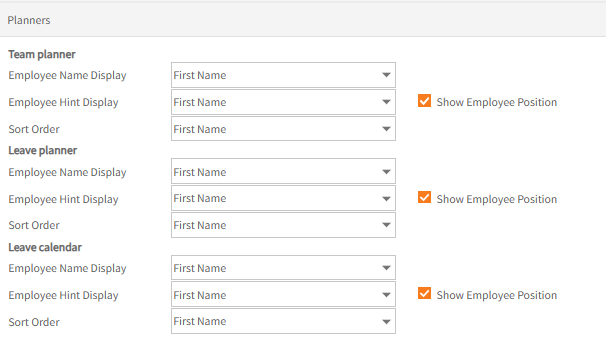
Specify the display options for the Team Planner, Leave Planners and Leave Calendar are displayed for those users who are able to view the planners.
The best option is to set Employee Name Display to a singular name option and the Employee Hint Display with a full name option.
The employee’s position can be optionally included in the hint.
Contact Address Validation
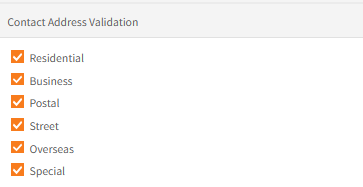
When an address is added or amended in Employee Self-Service Kiosk, suggestions for the Suburb are provided as you type, and will also complete the associated postcode, if it exists in the validation table in Ready Pay.
The validation setting options here refer to the various address types which will provide these suburb suggestions.
If you do not use overseas addresses, this setting would usually be the only one left unchecked.
Employee Lister and Org Chart
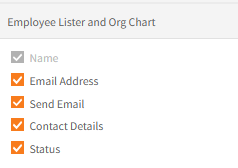
This contains the display options in the Organisation Chart's Employee Lister, accessed through the Details button once the desired position is selected.
Action Items / Workflows
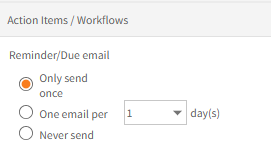
This contains the option for reminder or due emails sent by Employee Self-Service Kiosk for Action Items (OHS) and for Workflows (AW).
Emails can be set to only ever be sent once, one per specified number or days or to never be sent.
Return to Admin Menu