
System Options - Escalations
Escalations allows automatic escalations to be configured for Leave Requests, Timesheets and Expenses.
It also allows the Out of Office function to be available to specific Groups.
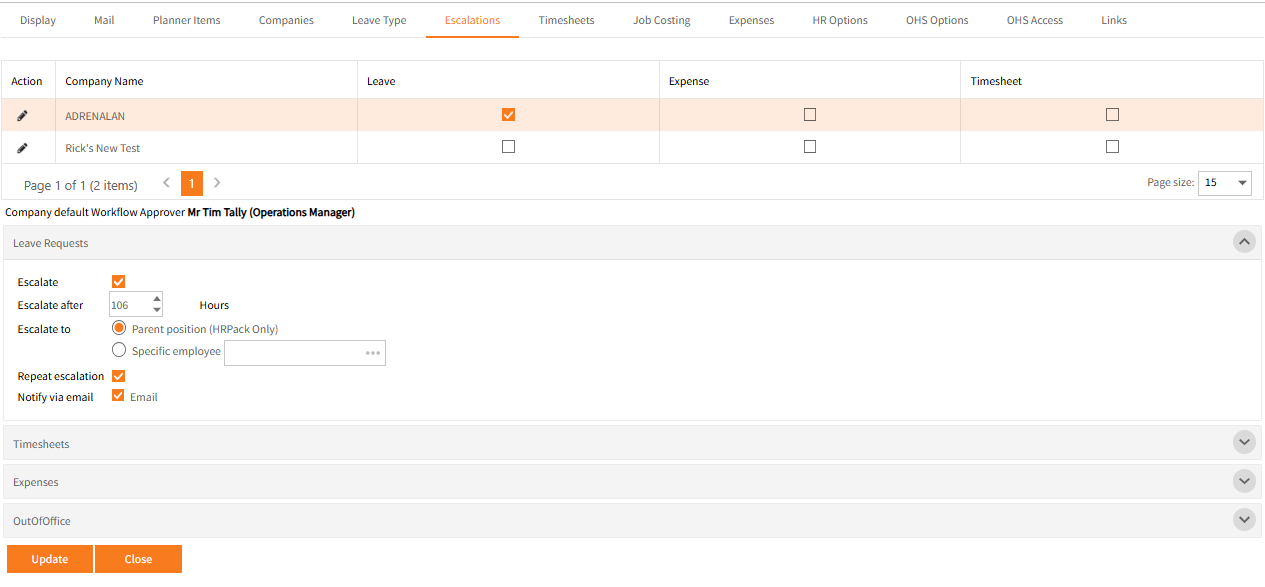
The options below are the same for Leave Requests, Timesheets and Expenses:
| Field | Explanation |
|---|---|
| Escalations | Tick the Options you require escalated for the relevant company |
| Leave Requests. | |
| Escalate | Tick this box to activate the Automatic escalation. |
| Escalate After | Set the number of hours to wait from the last action (submitted or escalated). |
| Escalate To | Set whether it should be escalated to the Parent position (the one above the approver's position) in the Org Chart or select a specific approver to escalate too. |
| Repeat Escalation |
This is only available with the Parent position option. When selected this will continue to automatically escalate up the Org Chart at the hourly interval set until it reaches the top and will do one final escalation to the Company Default Approver. |
| Notify via email | Select whether to send an email notification about the escalation. |
| Timesheets & Expenses The same options as for Leave requests are available. | |
| OutOfOffice Select the Groups for which the Out of Office function should display. This makes the function available in the user’s name drop-down menu at the top right of Employee Self-Service Kiosk. Out of Office allows the user to set a diversion for Leave Requests, Timesheets and Expenses to the Parent position or to specific approvers for the date range set as Out of Office. |
|
Note 1: When an escalation is actioned, if Notify via email is ticked, the email requests will be sent automatically to the new approver.
Note 2: If Notify via email has not been ticked, the escalated request will be in a taskin the Escalated Approver's To Do screen and can be accessed from the Escalated Leave Requests tab