
System Options - Expenses
This page contains all the settings to configure Expenses in Employee Self-Service Kiosk.
Expense Definitions
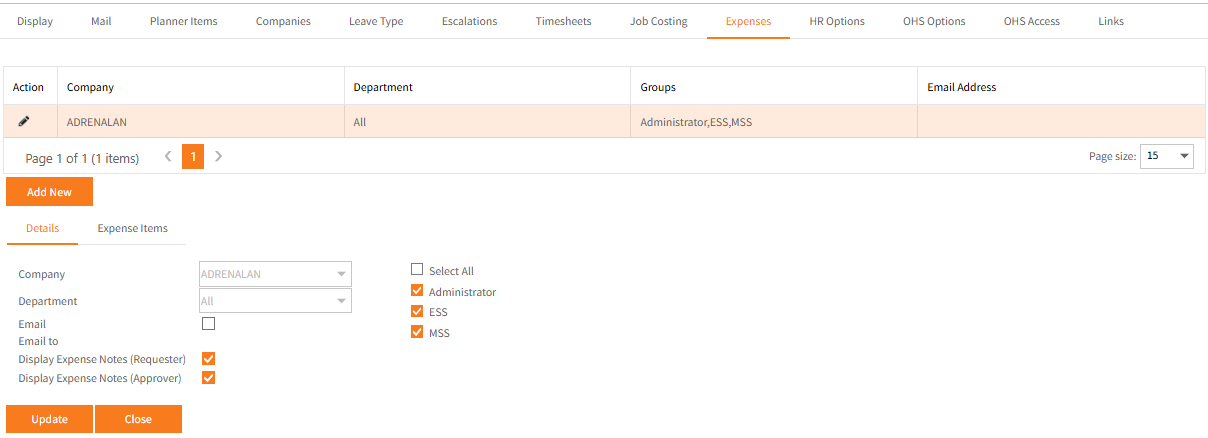
- Click Add New to setup an Expense Definition.
Definitions may be setup per Company or per company Departments.
By Department refers to an employee’s home Department – that is set on the employee’s Conditions of Employment tab in Ready Pay. -
A list of active Employee Self-Service Kiosk groups are provided and must be selected for all groups which are to use the expense definition.
-
Check the Email box and provide an Email to address if a contact/approver is to be notified upon the employee requesting an expense.
-
Check the boxes for Display Expense Notes (Requester) and/or Display Expense Notes (Approver).
Checking either box will include these notes on expense notification email. - Click Update to Save or Close to discard changes.
- Once saved, an Expense Items tab appears.
Select which Expense Items are to be made available to this expense definition and Update to save.
Note: Types and Items (and the pay items for Item) must be added and active before items are available for for selection in expense definitions.
Expense Types

- Expenses Types are a grouping of expense items.
- In the example above, expense types were created for Office Supplies and Travel.
- Expense Types must be created first before creating Expense Items.
Expense Items
Add any Items to be selected to display in Expense definitions.
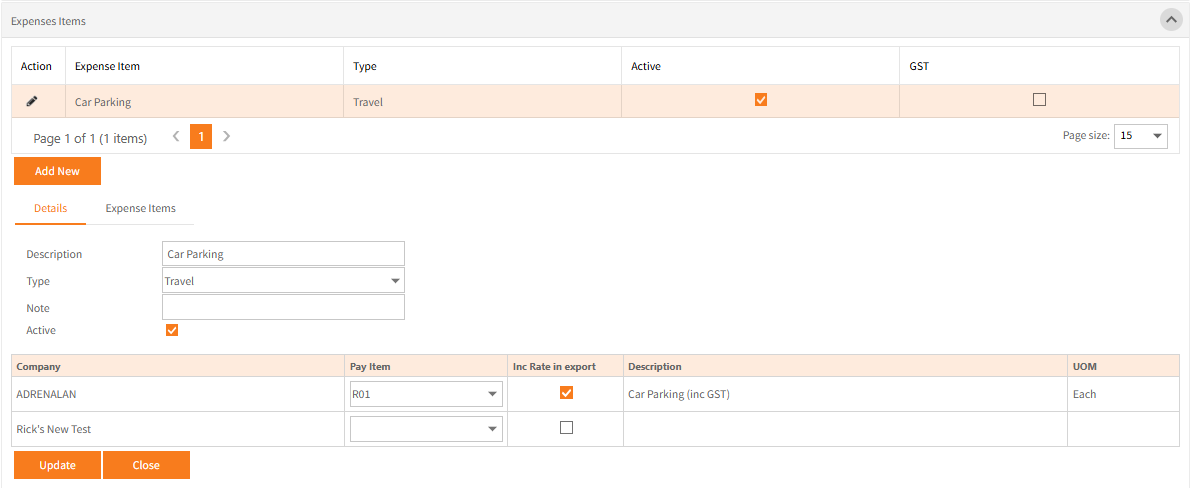
- Click Add New to create a new Item or the Edit icon
 in the Action column to edit an existing item.
 -
A pre-existing Type must be selected and Note is optional.
- Tick the Active check box for the Item to be available for selection in the Timesheet definition.
-
If the expense item is to be exported to Ready Pay, the Pay Item must be selected for each relevant company.
-
If the rate entered in the expense request is to be included in the export file, check the Inc Rate in export check box,
if the pay item has a fixed rate in Ready Pay, leave the box unchecked and only the units will be exported. -
The Expense Items tab allows the Unit of Measure to be selected for display in Employee Self-Service Kiosk, whether GST should apply and optional Description.
Expense Reasons

- Expense Reasons can be anything and are not integrated with Ready Pay.
- The example above shows 2 different types of reimbursements – one for a Credit Card Statement provided as evidence and another of a receipt provided as evidence.
Expense Options
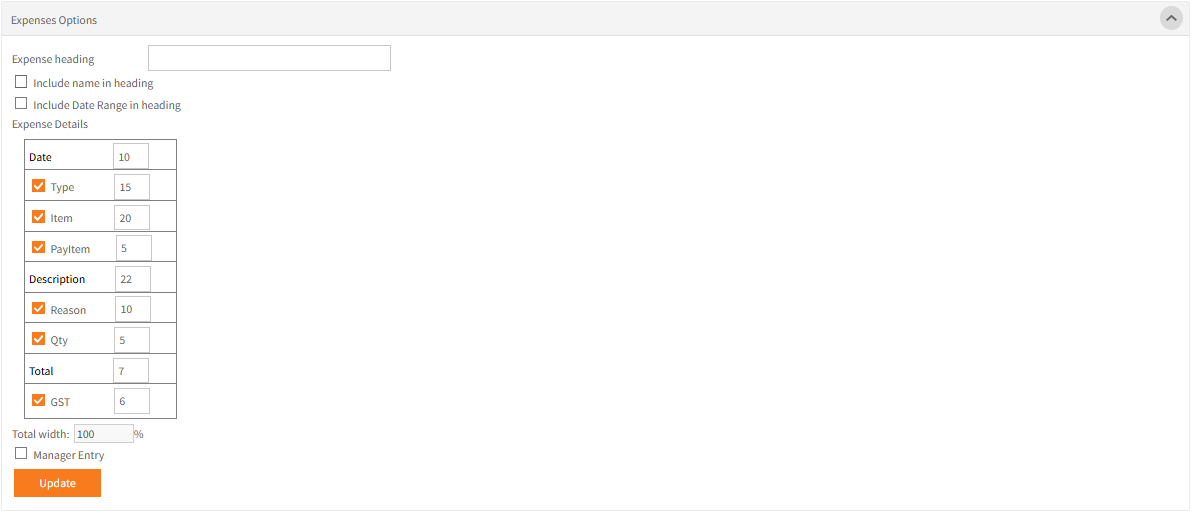
- Set an optional heading for Expenses and whether the employee name and date range should be included.
These will be used for email notifications. -
The Expense Details section determines the widths of columns in % terms.
-
Checking the Manager Entry check box allows manager/approvers to enter expense items on their employee’s expense requests.