
System Options - Links
This page contains settings for EmpLive integration with Employee Self-Service Kiosk, other URL’s and Saml single sign on.
EmpLive
EmpLive is a 3rd party product and will provide the details to enter in this screen.
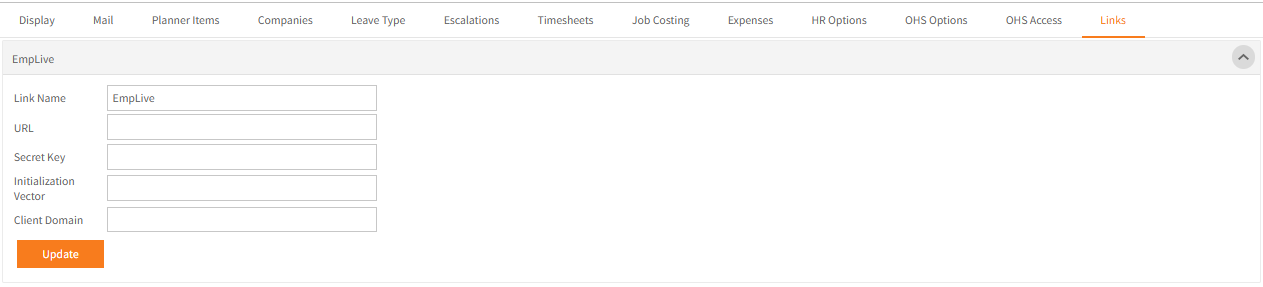
The Link Name will then display in the Employee Self-Service Kiosk’s left-hand side menu under Links.
Clicking the link name in Employee Self-Service Kiosk’s Links menu will open a new tab to the company’s EmpLive website with the user automatically signed in.
Click Update to save any changes.
URL
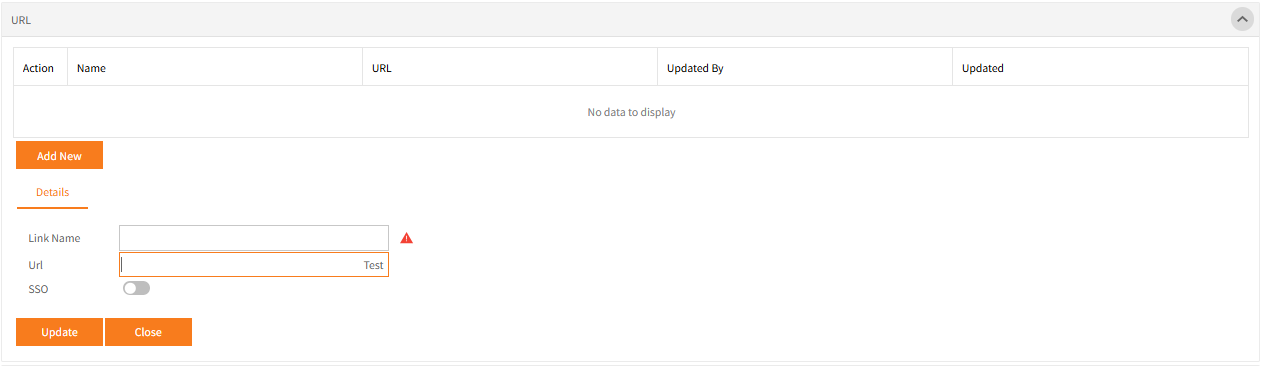
- Click Add New to add a URL into Links in Employee Self-Service Kiosk’s left-hand side menu.
-
Enter a Link Name for the URL to display under Links in Employee Self-Service Kiosk’s left-hand side menu, the Url should be the full address.
A Test button is available to test that URL can be accessed. -
If SSO is switched on by clicking the slider, further fields will display, allowing an IT person to enter the settings for Single Sign On to that website.
Saml
SAML – Security Assertion Markup Language – allows Single Sign On to Employee Self-Service Kiosk.
This should be configured by an IT person before being entered into Employee Self-Service Kiosk.
For more information and example guides for SAML in AzureAD or OKTA, contact support@hr3.com.au .
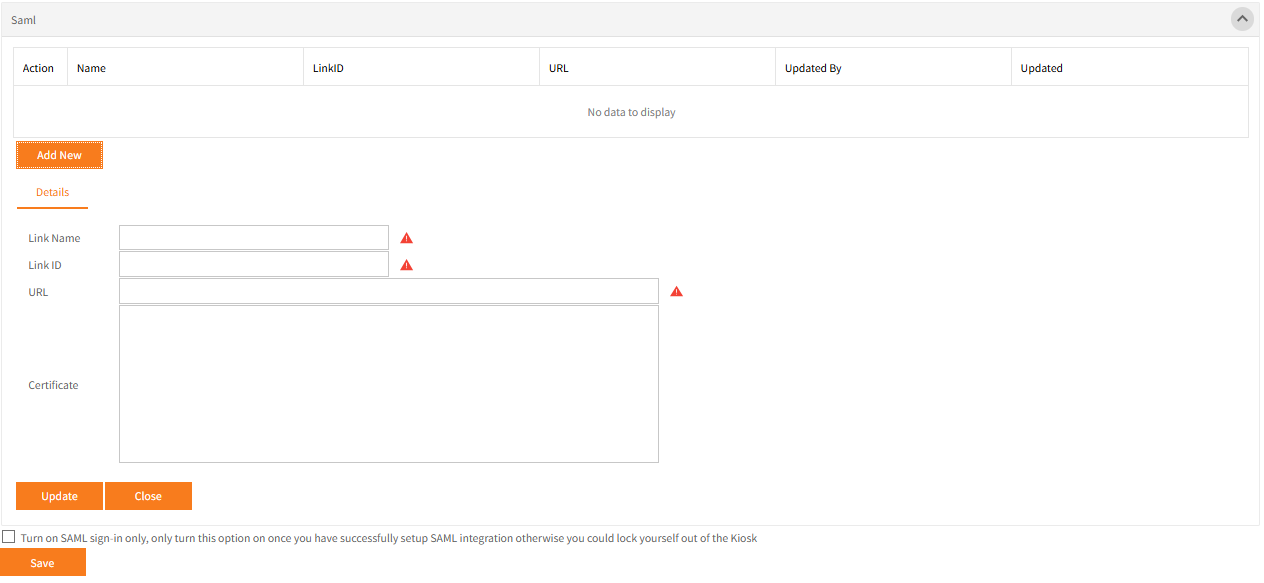
- Once all the necessary settings are entered, click Update to save.
-
Once set, a new login button will appear on the Employee Self-Service Kiosk login screen containing the Link Name specified.
User’s can now click this to attempt to Single Sign In to Employee Self-Service Kiosk. -
It is possible to then completely switch off the traditional email address and password login to Employee Self-Service Kiosk and only allow SAML sign in by selecting the checkbox at the bottom of the page.
As designated next to that checkbox, do not turn on that option until SAML has been setup successfully.
It should be tested by more than one user, especially a Employee Self-Service Kiosk administrator, who will be able to access this screen again to switch it off if necessary.
Note: Saml sign in is not compatible with the readypeople app (readypeople is only available to customers with Employee Self-Service Kiosk on ReadyTech's cloud).
Saml must be deleted for any such client’s wanting to enable the app and the normal email address and password login to be enabled.