
System Options - Timesheets
This area specifies how the timesheets will operate in Employee Self-Service Kiosk.
This is set up by the Ready Pay consultant as part of the system implementation process.
Note that if you make any post-implementation changes to the Timesheet setup, the changes will not be applied to any timesheets that already contain data.
For example, if you have timesheet data entered for the current week, but no data entered into next week's timesheet, the setup changes will not be applied to the current week's timesheet, but they will be applied to next week's timesheet.
Therefore consideration should be given to the timing of making the changes.
This is why it is important to not pre-fill timesheets too far into the future.
The Timesheets tab contains the following two pages:
Timesheet Defition which contains the set up of the timesheets for each company
and
Timesheet Type which switches to either Weekly or Fortnightly timesheets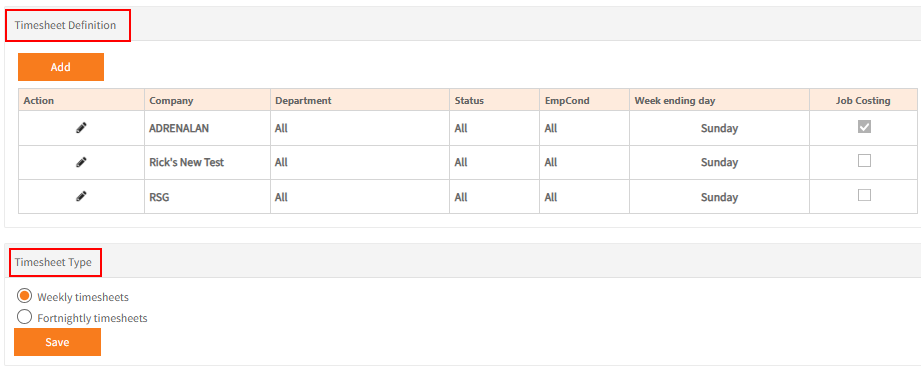
Timesheet Definition
In the Timesheet Definition page, click Add to setup a new timesheet definition.
Only one timesheet can be set for a particular combination of Company, Department, Employment Status and Employment Condition.
As employees could match multiple of these, thought needs to be given to what may be appropriate.
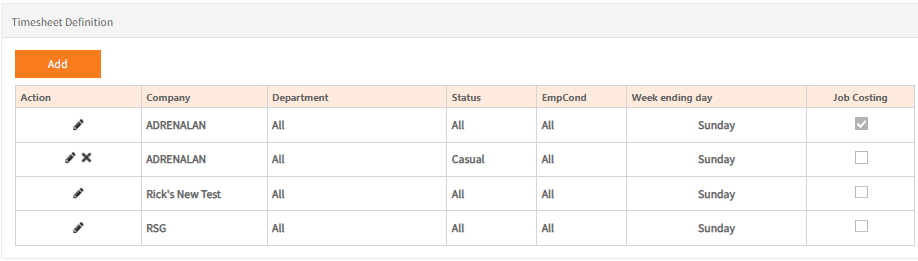
In the example above, one timesheet is setup for All employees in the Adrenalan company.
Employees in the Adrenalan company with a Casual Status will have their own separate timesheet and are no longer on the ‘All, All, All’ timesheet definition.
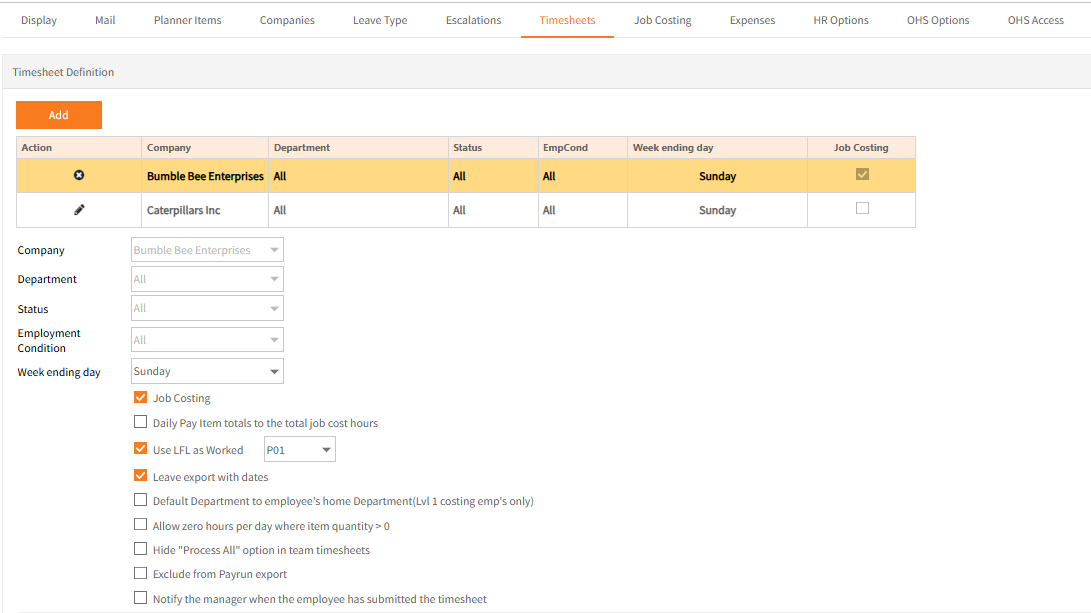
To check or amend settings for timesheets, click the Action  icon to the left of the company name.
This expands the screen and displays general options for that Timesheet Definition.
It also shows specific sections for Pay periods, Warnings, Items, Weekly summary timesheet exclusions and the Import file format.
Most of these settings relate to the Worked Hours and Worked Hours Decimal timesheet pages.
Timesheet Definition
Pay Periods:

This indicates who will be using this timesheet. This example means that staff who are paid weekly, fortnightly and monthly will use this timesheet.
Warnings:
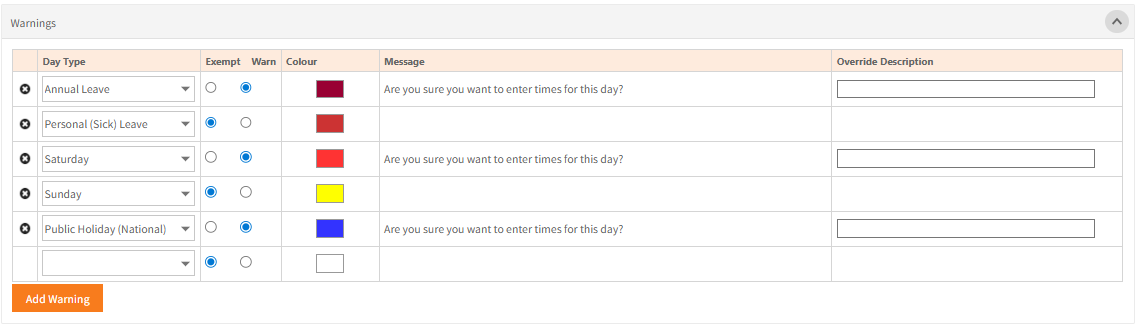
- Warnings and exemptions can be added to the timesheet.
This allows either no data entry being allowed (when set as Exempt) or a warning to be displayed (when set as Warn) when the Day Type condition selected is matched in the timesheet.
To add more warnings than those originally displayed, click Add Warning to create a new line for the new warning. - Days of the Week, Public Holiday types and leave types set up in Ready Pay are available for selection for warnings.
-
The warnings applied to the timesheet definition must be appropriate to the staff using this timesheet.
For example if staff can work Saturdays or Sundays, those days should not be set as Exempt.
You may want to set them as a Warning if weekend work is irregular. -
If preferred, choose a colour to apply to any day that is the relevant Day Type on the timesheet. For example, you might want as well as being made Exempt, may wish to highlight Sundays to be highlighted as yellow to draw attention to it being different to other days(as well as Exempt). This will display on the timesheet like this:
- If preferred, choose a colour to apply to any day that is the relevant Day Type on the timesheet.
For example as well as being Exempt, you might want to highlight Saturday as red and Sunday as yellow to draw attention to it.
This will display on the timesheet like this: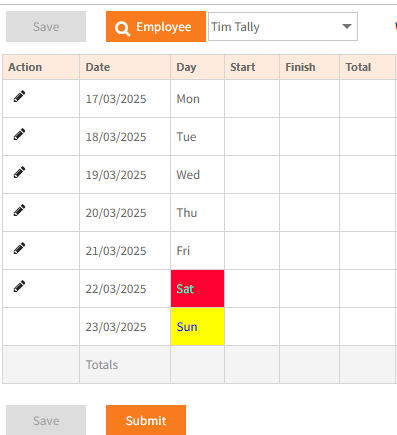
- For a Day Type set as Warn, the default warning shown in is displayed.
To display a different Warning enter the new text in Override Description.
Warnings and exemptions can be deleted by clicking the x to the left of the relevant row or by selecting a blank Day Type.
Weekly summary timesheet exclusions: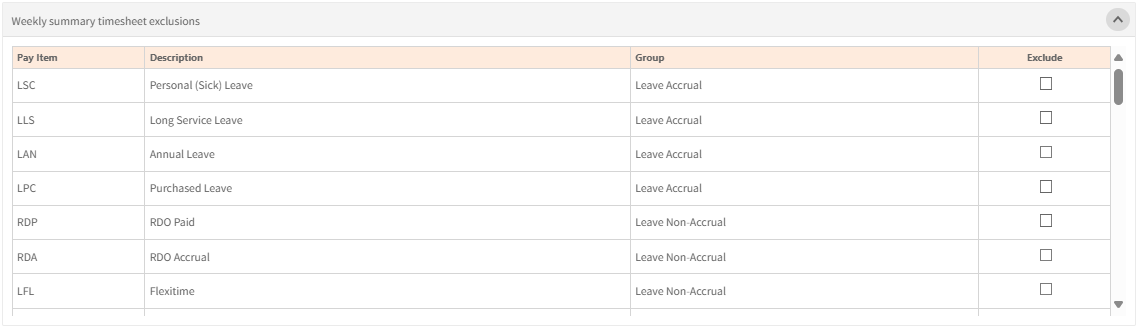
Import:

Timesheet Definition Options:
| Field | Explanation |
| Job Costing | Job Costing can be activated for a timesheet definition and then configured for Items by checking the box. We recommend that you discuss using Job Costing with your Ready Pay consultant, or contact Ready Pay Support, to ensure the process is completed correctly as it requires further setup in Admin, System Options, Job Costing in Employee Self-Service Kiosk. |
| Daily Pay Item totals to the total job cost hours | When selected, this overrides any hours allocated to pay items in the timesheet with hours allocated to pay items in the job costing screen. This saves from having to edit the timesheet and delete the hours already allocated to pay items manually (or delete the entire timesheet entry for the day). Simply go into job costing and make changes to the pay item allocations and it will update the timesheet upon saving. |
| Use LFL as Worked | Check this box and select the usual ‘Normal Time’ pay item code, eg: P01, if using LFL Flexitime (Accrued) to add the hours entered in LFL to the selected pay items hours in line with Ready Pay’s payrun requirements. |
| Leave export with dates | When checked this includes the day’s date for hours entered for leave pay items in the timesheet. When Use LFL as Worked is also selected, the date appears on both the normal time and the LFL line in the payrun. This applies to the payrun’s Timesheets Import function. |
| Default Department to employee’s home Department (Lvl 1 costing emp’s only) | This option works with Job Costing and will set the Department automatically as the employee’s Home Department in the Job Costing entry window. |
| Allow zero hours per day where item quantity > 0 | This is for scenarios where no hours are worked on a particular day but something needs to be entered for a non-hours based pay item on that day – e.g. an ad hoc allowance, |
| Hide “Process All” option in Team Timesheets |
This hides the Process All button that otherwise displays after timesheets are approved so timesheets cannot be locked. Locking will then only occur automatically on Payroll Export or importing through Payroll’s Timesheets Import or manually in Data Explorer. |
| Exclude from payrun export | This will exclude timesheets entered under the timesheet definition from being exported. Selecting this option will have no effect on Timesheets Import in Ready Pay. |
| Notify the manager when the employee has submitted the timesheet |
When checked, this provides a Submit button on timesheets which must be clicked to make the timesheet available for approval. It notifies the manager/approver by email that the timesheet is submitted when clicked. With this option off, simply saving timesheets makes them available in Team timesheets and no email notifications are sent. |
Items
This displays the pay items to which hours worked can be applied.
The example showing ordinary time, time and a half, and double time, would be a typical setup, and it also shows Leave items.
- When the hours worked for a Pay Item is to be included in the hours leftcalculation on the timesheet, the Work option should be selected.
These are the hours that make up the pay for the relevant time period.
As Work invokes the leftcalculation, if you do not want hours to be included in this calculation choose Hours instead. - Qty, Hours and $$$ are units of measure, so this will affect the format of the data entries on the timesheet.
- Pay items which are 'each' should be $$$, or occasionally Qty.
- Pay items which are 'hours' should be Hours (if not Work).
- Pay items which are 'days' or 'kilometres' should be Qty
- The pay item codes will display on the Timesheet unless you enter preferred text in Override Description.
-
If a pay item is to be displayed on the Job costing entry screen tick Job Cost.
- If a pay item is the default item for hours worked, select the Default option for that pay item.
If this default pay item has a standard maximum hours per day, enter this value in Maximum. -
If job costing was not selected for pay items, the Balance checkboxes will be available.
The first pay item which would usually be normal time will not be selectable but other hours-based pay items may be.
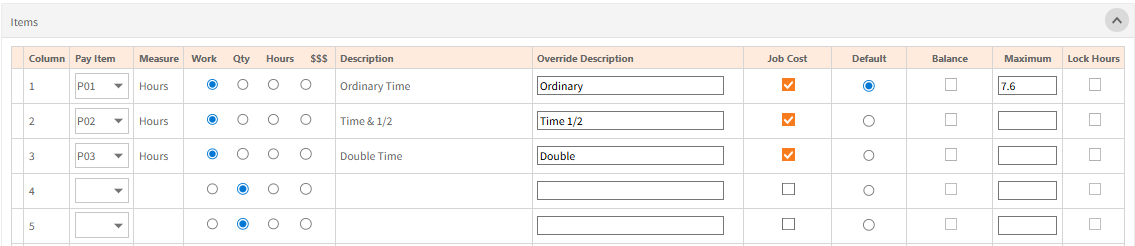
-
In the example above, the Balance checkboxes and Maximum hours mean that the first up to 7.6 hours per day will be automatically allocated to P01.
The next lot of hours up to 2 will be allocated to P02.
The next lot of hours up to 8 will be allocated to P03.
Any hours beyond 17.6 hours for a day will not be allocated to any pay item. -
Lock Hours works in conjunction with Default, Balance and Maximum.
If checked this will prevent the user from changing the hours that were automatically allocated to those pay items.
Weekly Summary Timesheet Exclusions
Unlike Worked Hours timesheets, for which pay items to be displayed are setup in the Timesheet definition’s Items section, the Weekly Summary Timesheets display all pay items setup on the employee’s Standard Pay Items Tab in Ready Pay.
Checking the appropriate checkboxes in the Exclude column for pay items will hide those pay items for all employees on this timesheet definition.
This is useful if there’s Standard Pay Items that are fixed or maintained by payroll users exclusively on employee files that shouldn’t be able to be changed by employees in their timesheet.
Import
This allows an import format to be set for all timesheet definitions in a company (it only follows that set for the ‘All’ timesheet definition).
There are 6 formats for importing data into Employee Self-Service Kiosk’s timesheets - HR3_T1, HR3_T2, HR3_T3, HR3_R1, HR3_R2 and HR3_R3.
HR3_T3 and HR3_R3 allow 1 pay item to be specified for hours to be allocated to (usually the normal time pay item), others do not allocate any hours to pay items.
If you think this may be beneficial contact Ready Pay support to discuss further and obtain example import formats.
Timesheet Type
Select between Weekly or Fortnightly display for Worked Hours and Worked Hours Decimal Timesheets (relative to the Week Ending Day selected).
This setting applies to all companies and Timesheet Definitions, all either display 7 or 14 days.
Return to Admin Menu