
Users
This page lists all users of Employee Self-Service Kiosk within the companies set to display in Employee Self-Service Kiosk.
They are divided into alphabetical segments for ease, and within each segment it displays the number of users in that segment.
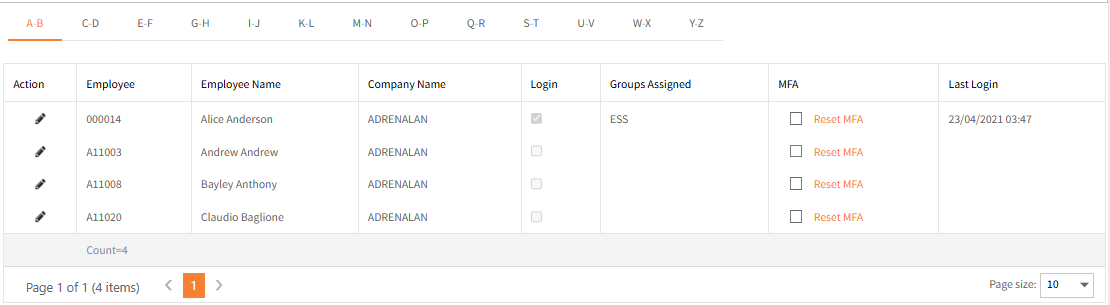
Click the Edit icon  in the Action column to open a record which details the Group they belong to.
This allows the user to be assigned to a different group.
Note that to avoid conflicts in security settings, a user should usually only be in one Group.
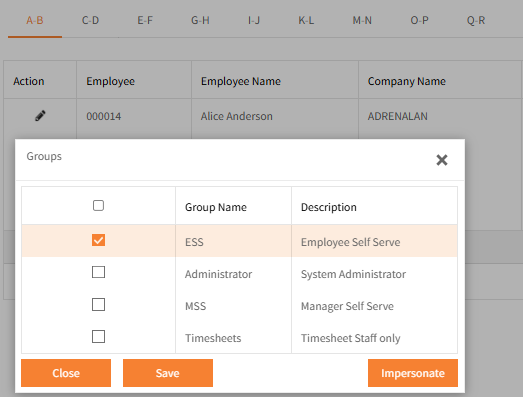
If changes are made click Save to save and close the window.
To cancel any changes and close the window, click X (Close) in the top right corner.
Login
The Login checkbox is greyed out in Employee Self-Service Kiosk.
This represents whether the user is activated to login to Employee Self-Service Kiosk.
To activate or de-activate Employee Self-Service Kiosk login, this must be done in Ready Pay in the employee file’s Security tab.
MFA
This only applies for client Employee Self-Service Kiosks hosted on-premise, that is hosted on your own servers.
Ticking this check box enables MFA for this user.
However, this is often not controlled at the user level but rather at the Group or Global level.
If this is the case, MFA can remain unticked for the user.
- When MFA is enabled at a global level in Employee Self-Service Kiosk’s System Options, it applies to everyone regardless of what’s selected for the user.
-
When enabled at a Group level, it will also tick it in Users for each user assigned to that Group.
Unticking it against a user, will remove the MFA requirement for that user, thus overriding the Group setting.
Reset MFA
This only applies for client Employee Self-Service Kiosks hosted on-premise, that is hosted on your own servers.
Clicking Reset MFA will trigger a routine that will display a QR code to be scanned for that user on their next login to Employee Self-Service Kiosk.
Last login
Displays the date and time the user last logged into Employee Self-Service Kiosk.